| CompSci 190 Fall 2022 |
Programming Games FOCUS Section |
Shoot'Em Game
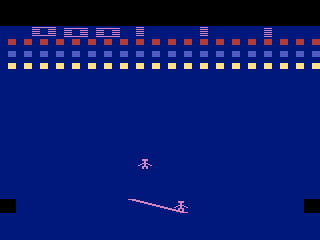
Convert your Shoot'Em Game from using Python's Turtle module to the external Arcade module created by Paul Craven, a recently retired professor from Simpson College in Iowa. Arcade is designed to help you create games so there will be many things you no longer need to worry about (like remembering to call penup()), but you will no longer have access to Turtle "commands" (like forward() or left(), instead managing movement by changing coordinates with dx and dy).
Take this opportunity to:
- rewrite your game to show you understand these key programming concepts: Loops, Lists, and Classes
- improve your game since many things will be easier to do in Arcade which is built to support making games (like collisions!)
- explore the basic features provided in Arcade to see how they might enhance your game's style and theme (start slowly, we will explore more complex features in the coming weeks)
Getting Started
To use the Arcade module, you will need to include it within your project's Python Interpreter Environment before you will be able to import it (the Turtle module is provided as part of Python so this was not necessary). The easiest way to do this is to let PyCharm do all the work for you :)
- Create a
New Projectand replace the default code given in the Python file with the basic code below to get started:""" Created on Oct 13, 2022 @author: YOUR NAME HERE!! This module represents my first Arcade game. """ import arcade # Open up a window with a width, height, and title arcade.open_window(600, 600, "My First Arcade Game") # Keep the window up until the player closes it arcade.run()
- You should see an error in the code, red underlining the word
arcade, that PyCharm can fix for you:- hover your mouse over the word
arcadeuntil a Tooltip appears saying:No Module named 'arcade' - select the left option given:
Install package arcade - you should then see a progress bar updating at the bottom of the PyCharm window and then a popup in the bottom right corner saying:
Packages installed successfully
- hover your mouse over the word
- Now run the program by right clicking on the file
main.pyfrom the Project File List on the left side and selecting:Run 'main'
If you prefer to know more about how the code is downloaded to your computer and made available to Python, you can follow these installation instructions (the end result should be the same). This step will need to be done for each new project you create.
There are two options for coding your game:
- Copy your original Turtle game and change it to use Arcade instead like we did in class (changing the coordinates, the interaction functions into Game methods, inheriting from the appropriate Sprite, and removing a lot of code that is no longer needed)
- Start with this template and replace its code with your own (changing the coordinates and moving over mostly only the game mechanics code)
When using Arcade it makes more sense to put all your code in methods within different classes, so the translating your original code only really makes sense if you already have multiple classes that inherit from the turtle.Turtle class.
Specifications
Complete these minimal requirements:
- any number of moving objects that are created algorithmically (i.e., using a loop and stored in a list) whose starting value is stored in a variable at the the top of the program
- an object that is controlled by the player (e.g., using the mouse or keys to move)
- allow the player to shoot a bullet at the moving objects
- a score that is updated when objects are hit
- an end condition for the game, such as clearing all the objects or counting down an amount of time (i.e., when it gets to zero, the game should end)
- stop the game actions and display separate winning and losing messages when the game ends
Beyond the basics, you must add at least two features to make your game more fun to play, such as:
- multiple bullets: allow the player to shoot any number of bullets (i.e., stored in a list that is checked against the list of moving objects)
- reset: make a standard starting situation (like the player is in the center of the screen and the obstacles are back at the top), such that the game "resets" after losing a life or starting a level
- lives: so that game pieces reset and the player gets multiple chances to play the game before it ends
- score: make different point values for different objects or based on how long the game has been played
- levels: so that game pieces reset and some aspect of the game harder (e.g., faster, more obstacles, less distance) after a certain number of points or time
- waves: create moving objects in different patterns (using loops and arithmetic)
- effects: give different moving objects different effects on the game (i.e., different response to being hit or act as power-ups)
- restart: reset all the game objects and options to their starting configuration as if starting over
Using images or sounds in your game will not impact your grade, but will likely make it look nicer and more fun to play. Arcade makes it easy to add resources in a variety of formats (not just GIF!), and even includes some that do not need to be downloaded. If you choose to download your own sounds and images, they must be royalty free and not "stolen" off of the web, using sites such as:
- OpenGameArt.org
- Kenney.nl has a few free sound packs you can download, and several that are cheap
- How to find free-to-use images with Google Search
- Freesound.org requires a login
- Or pay attention to the Creative Commons licenses on individual web sites
In the comment at the top of the Python file add:
- Your name
- How long you spent coding it
- Acknowledgments for any online or human resources used
- Acknowledgments for any resource files (images, sounds, etc.) used
- How to play your game (so I know how to play the game and what you intended to do and what is not completely working)
- Discussion of the fixed values you choose to make your game fun to play: the size of the game objects, number of obstacles, movement speeds, and any random ranges

|
Last modified 10 Nov 2022 |

|