checking in a project
You can and
should check-in your files multiple times. Even if you are not done with
your project, you should always check-in your project before you leave
your computer. The process of checking in a project is very similar to
checking out a project.
In order to
check in a project select Ambient > Check-in Project (alternatively you may press Ctrl + Alt + S). You will see all
projects in your workspace that are ready to be checked in. Select one
project and click Finish.
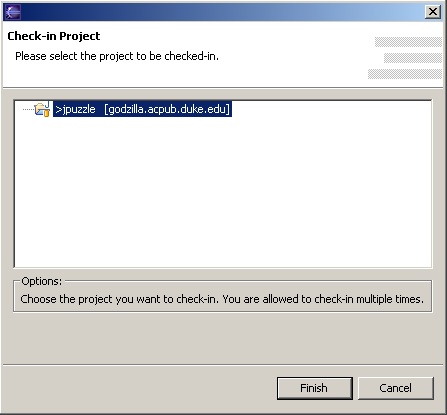
The process
will run in the background. You will be informed if your files have not
been checked in successfully.
replace with a previous checkin
With each
check-in, your project files will be tagged with the date. This lets you
come back later and undo any incorrect changes you later made. Please
be very careful with this function as it will remove your latest code
and only let you use the code that you decided to revert to. Use the Replace with Previous Checkin option from the
Ambient pulldown menu
for this functionality.
|