checking out a project
There are two
ways to start working on a project. You can either create
a completely new project, or you can checkout a project from the CVS
server. To see if there is a project for you to check out, please
follow
these steps.
- Open the
Ambient Checkout window by selecting Ambient > First Time Project Checkout or Ambient >
Checkout Ongoing Project. You may need to first change your Checkout
preferences
to have your login name stored. The first time you do this you will be
prompted
for a password.
- *--NOTE--*
There is most certainly a difference between Checkout Ongoing Project
and First Time Project Checkout. The difference in First Time Project
Checkout is that it will
delete all previous project work on both the remote server (including
your checkins) and also your local files. It will give you fresh start,
but you must be
sure that this is what you want because you cannot revert back. Checkout
Ongoing
Project will bring you your latest checkin on the remote server,
and if you haven't ever checked in a project then it will get the basic
(beginning) project.
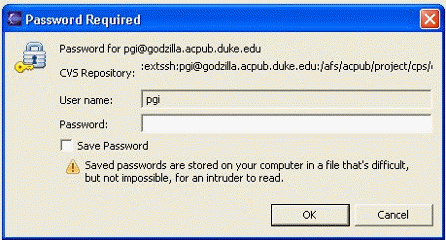
- Enter your
NetID password and click OK. It is preffered not to check the Save Password option.
- A new
window should open that will prompt you to select a project
that you wish to check out.
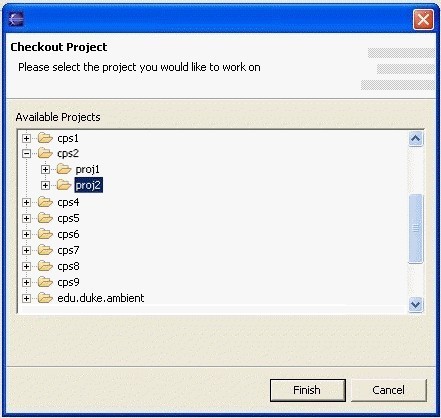
- Find your
course's designated folder and navigate to the project you'd like to
work on. Make your selection and click Finish. Checking out a
new
project may take some time depending on the speed of your computer and
the network connection. Please be patient!
- The window
should disappear, and you should be returned to the Eclipse workbench,
where you should notice a project in the Ambient Package Explorer.
a word of caution
- You will
have to be careful if you want to work on the same project from home
and at school. Let's say you start working on a project in school and
submit it. Then you go home, check out the project again, work on it,
and finally submit it again. So far no problem. However, if you want to keep working on the project
in school the next day, you have to
remember to check out the project again. This will ensure that you always work with
the latest copy of your project. If you check out the project
again it will ask you to overwrite the old project. Answering yes will
allows you to work on the latest version.
- Before you
can use the Duke Ambient environment to start working on your projects
or labs, you need to make sure that all configuration settings suit
your needs. If you do not verify the preference settings, it is
probable that Ambient will not function correctly.
- Click OK to save the preference settings.
This will close the window. You are now ready to check out your first
project.
|