preparing the environment
Before you can
use the Duke Ambient environment to start working on your projects or
labs, you need to make sure that all configuration settings suit your
needs. If you do not verify the preference settings, it is probable
that Ambient will not function correctly.
verifying the preference setting/setting up CVS
- Open the
Ambient preferences by selecting Window
> Preferences > Ambient >
Checkin/Checkout. You should now see the following window.
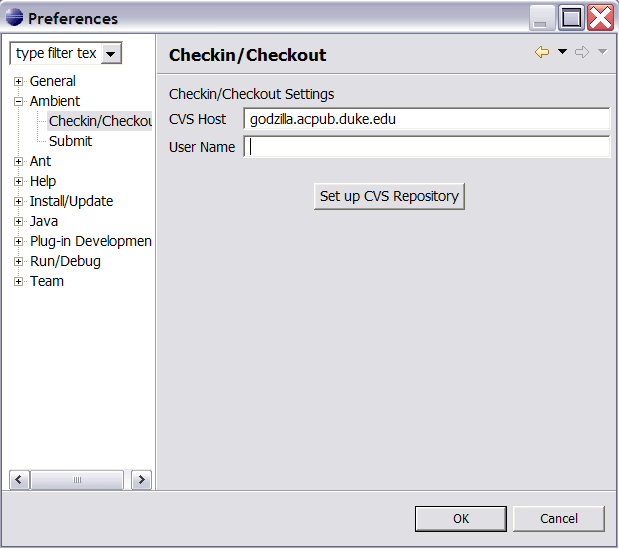
- The CVS Host should be
login.oit.duke.edu. Lastly, you need to enter your NetID in the User field.
- FIRST TIME ONLY: If this is the very first time that you are starting computer science classes at Duke you will need to set up your CVS repository. This is easily done by pressing the Set Up CVS Repository button. You will be prompted for your NetID password. Once it is over, you will see a confirmation message. Note: the entries currently typed into the preference page will be used for the connection, you do not need to click the OK button to use this function. This is a one-time-only operation and you will not have to perform it again.
- Next,
change the Submit preferences by selecting Window > Preferences > Ambient
>
Submit. You should now see the following window.
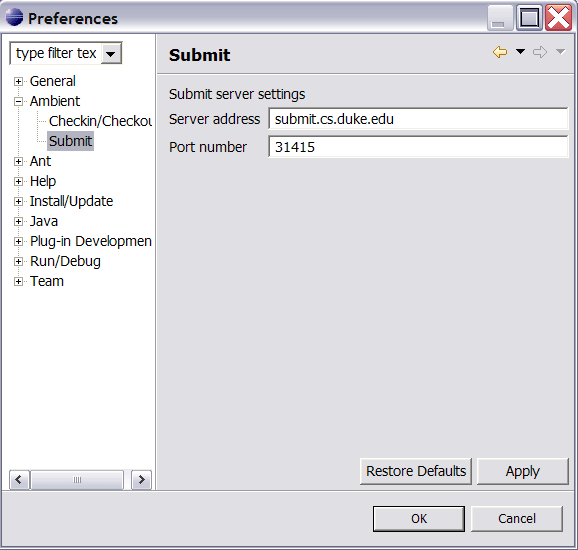
- The Submit address should be submit.cs.duke.edu and the Port number should be 31415 (these are the default
preferences).
- Click
OK to save the preference settings.
This will close the window. You are now ready to begin working on your first project, which you must first snarf.
|