info
The Ambient toolbar is easy to use:
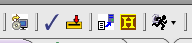
It contains several buttons needed for handling programming projects:
-
Project Downloading
-
Project Check-in and Check-out
- Project
Submission and Submit History Tools
workflow
Here's an example of how a student will typically work with Ambient:
- Download a new project or checkout an existing project
- Work on the files, compile, and test
- Check the project into a CVS repository
- Check it out again and work some more (potentially on a different computer)
- Submit the project for grading
The following student documentation contains information on how to perform all these tasks.
student documentation
Documentation for Ambient is available through the help system of Eclipse (choose Help > Help Contents) . You can also browse the sections available below:
professor documentation
Distribution of assignments is achieved by using the Snarfer module. Please read the documentation relating to the set up of a snarfer site.
server documentation
If you need information on running a course server, take a look at the
documentation available.
|